Before you can assign a default dealer, you must create an Organization.
Creating an Organization
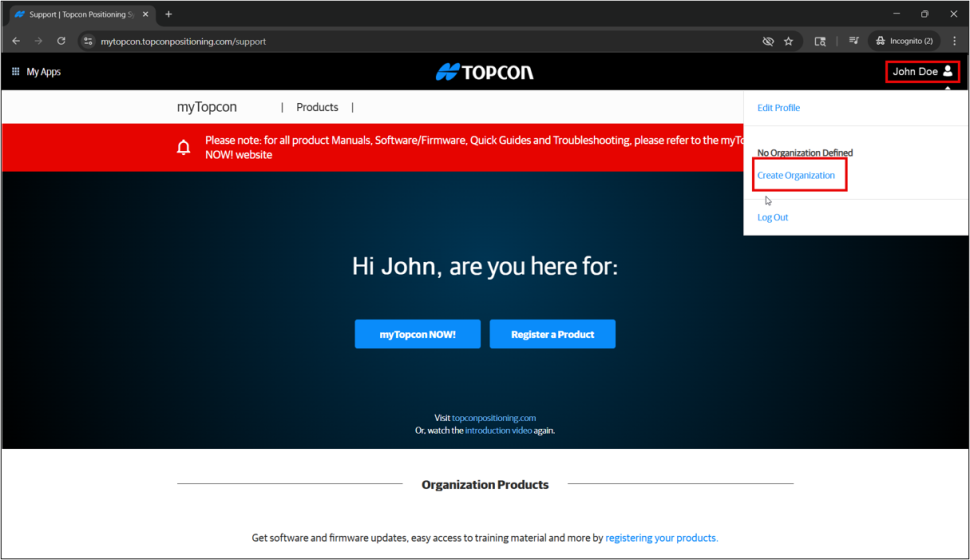
Log in to your newly created Topcon Account and then click on your profile in the upper right corner of the web page. A drop-down menu will appear. Click Create Organization.
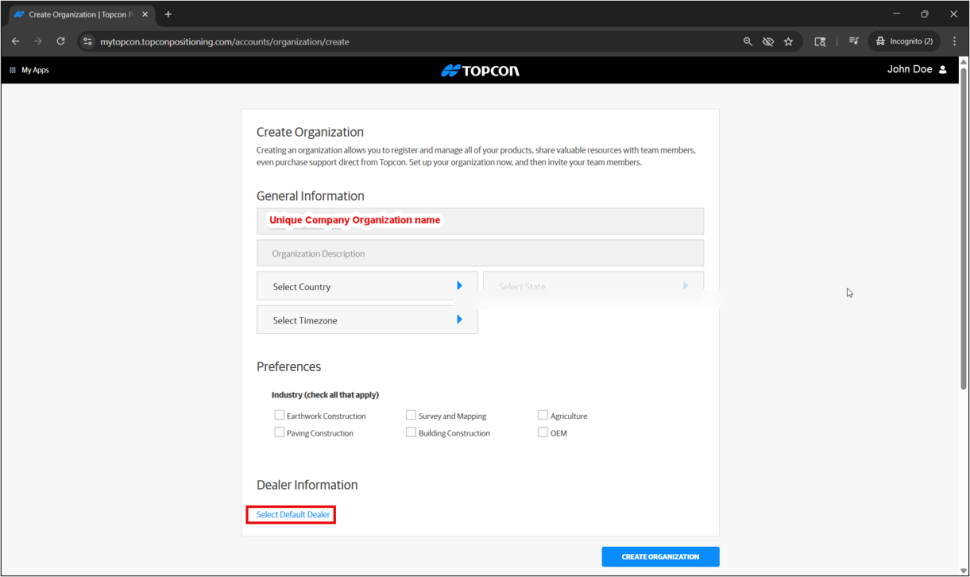
Fill out the details on the General Information tab of the Create Organization page.
This Organization will be used to register your Topcon licenses, equipment, etc.

Assigning a Default Dealer
Click on the Select a Default Dealer option.
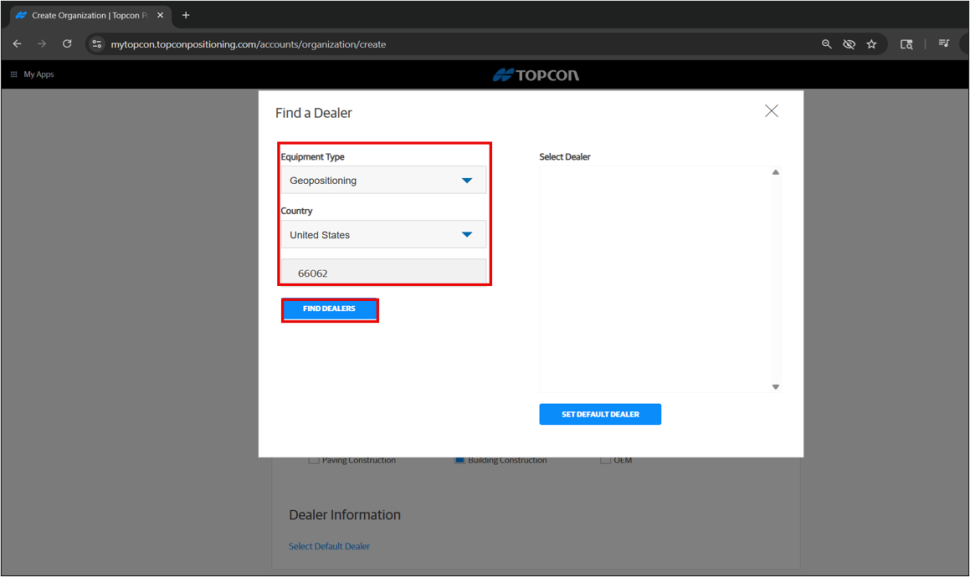
Select the ‘Equipment Type’, ‘Country’, and ‘Zip Code’ in the Find a Dealer tab.
Once done, click on the Find Dealers button.
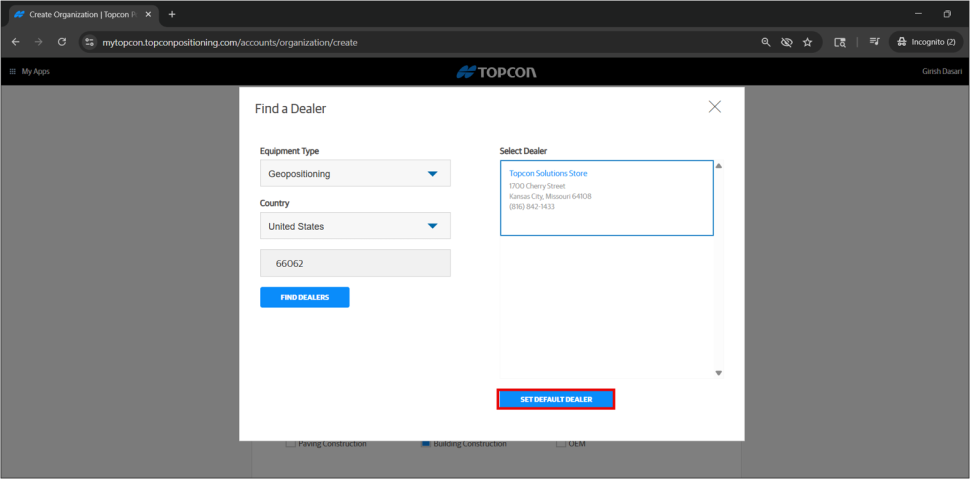
Select the dealer you would like to assign as your default dealer from the Select Dealer tab.
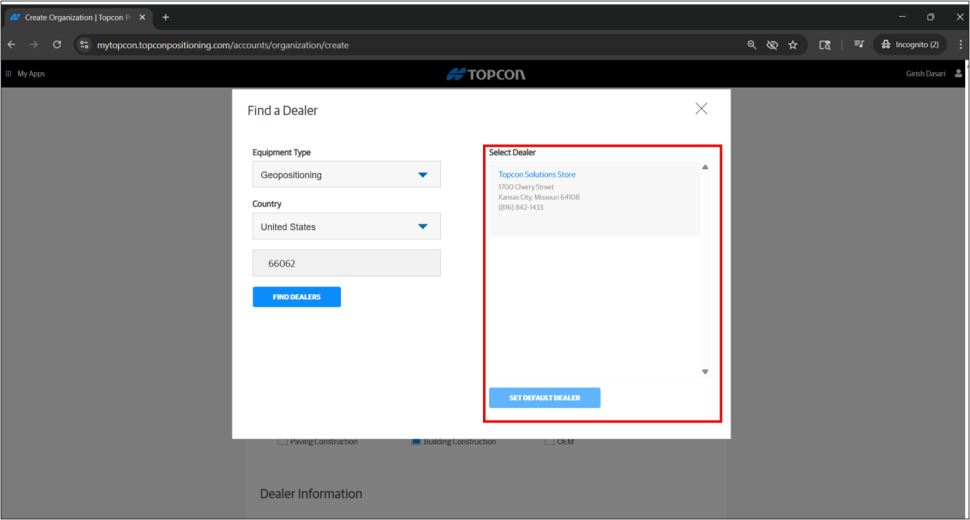
Once selected, click on the SET DEFAULT DEALER button.
This completes the assignment of a default dealer.
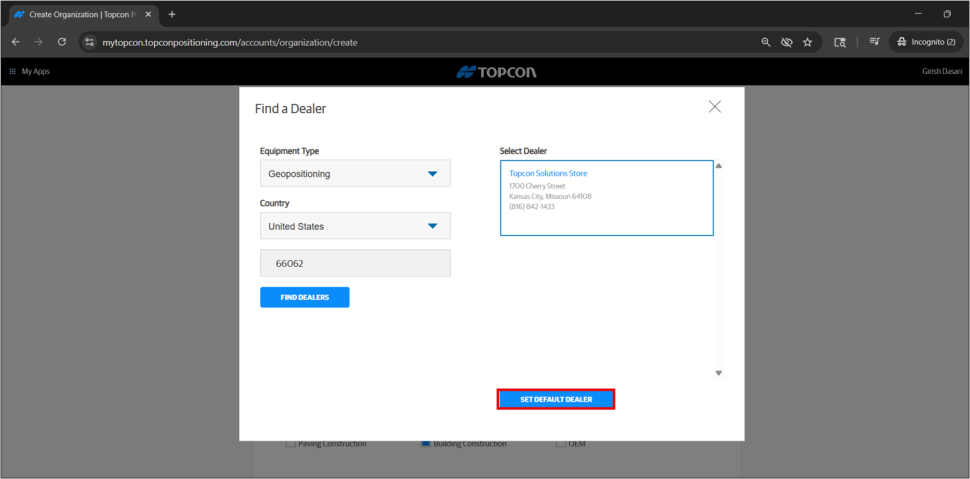
Assigning a default dealer to an existing Organization
To assign a default Dealer to an existing organization, log in to your myTopcon account.
Select Edit Profile > View Organization.
Then select Edit Organization > Select Default Dealer.

Select the ‘Equipment Type’, ‘Country’, and ‘Zip Code’ in the Find a Dealer tab.
Once done, click on the Find Dealers button.

Select the dealer you would like to assign as your default dealer from the Select Dealer tab.
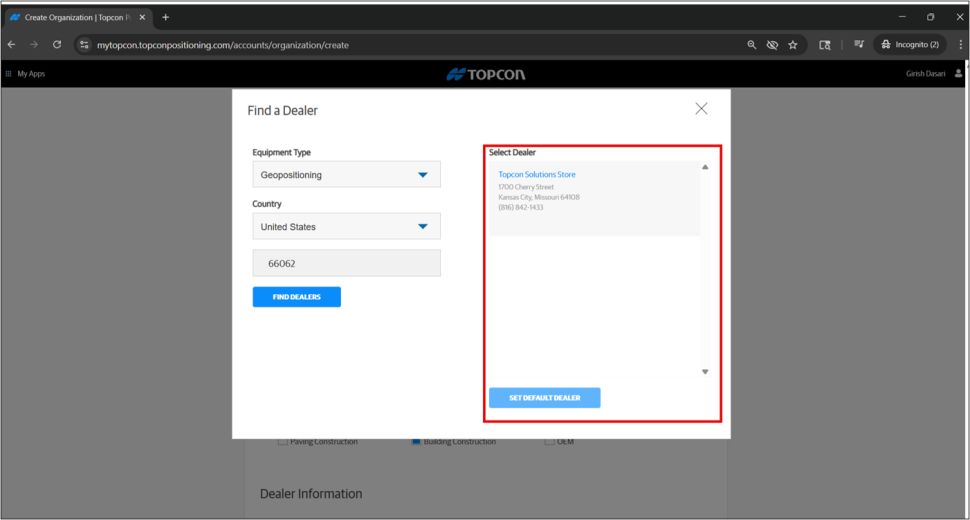
Once selected, click on the SET DEFAULT DEALER button.
This completes the assignment of a default dealer.